
How to set up ClashFarmer
Three simple steps and about 10 minutes — that's all it takes to start farming.
Setup steps
-
Install an Android emulator
ClashFarmer plays Clash of Clans through an Android emulator on your PC. We recommend LDPlayer — in our experience it is the fastest and most reliable emulator, and ClashFarmer detects and configures it automatically. The installation is a simple wizard: download it, run it, follow the instructions.
Prefer another emulator? BlueStacks 5 is fully supported as well.
-
Install Clash of Clans and connect your account
- Open the emulator, open the Play Store, search for "Clash of Clans" and install it.
- Sign in with a Google account when asked (or create a new one).
- Open Clash of Clans and load your village by signing in with your Supercell ID — this works whether your village was played on Android or iOS. If you're starting fresh, skip the in-game tutorial.
- Important: set the game language to English — the bot's image recognition depends on it.
-
Install and run the ClashFarmer bot
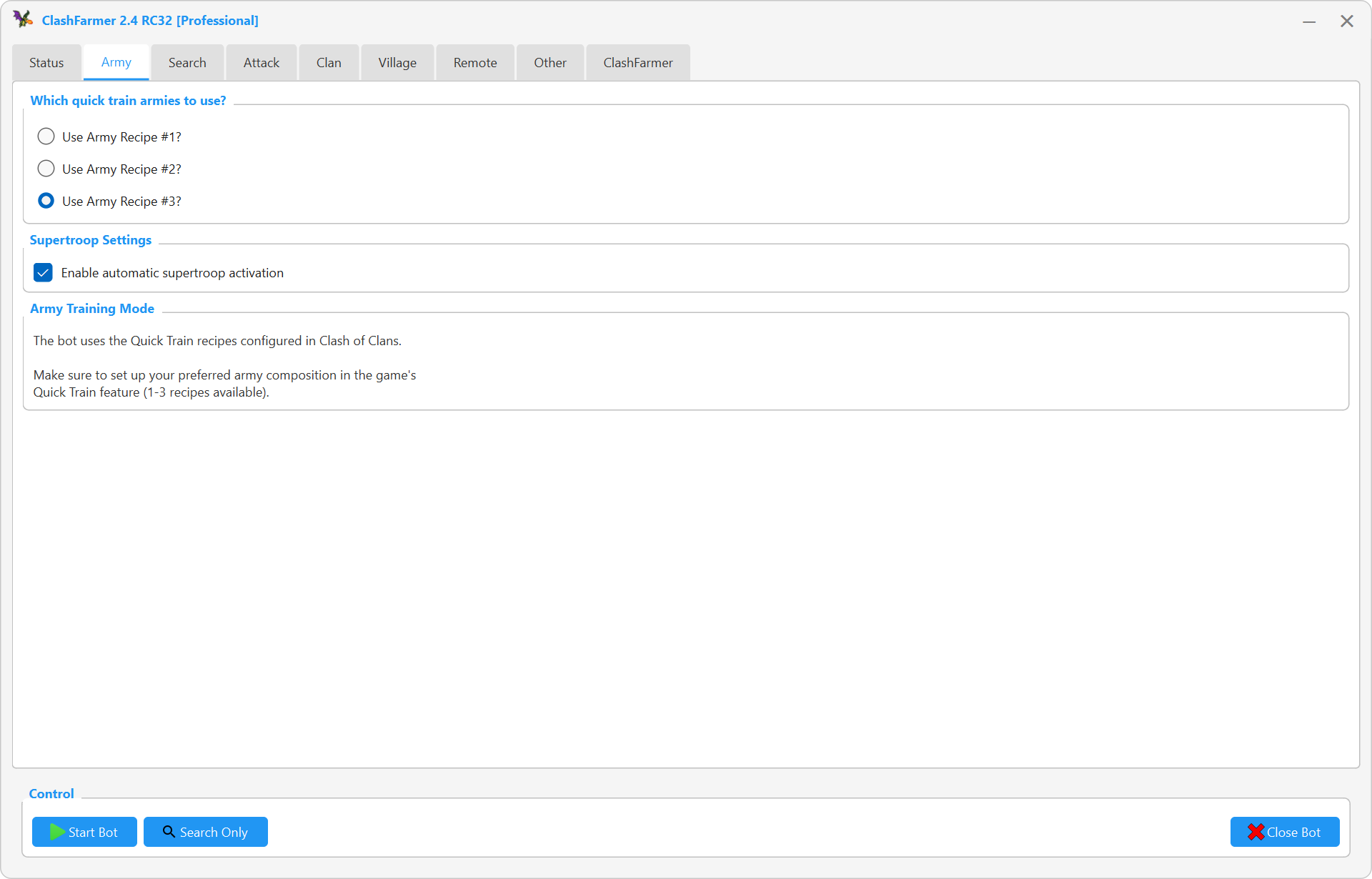
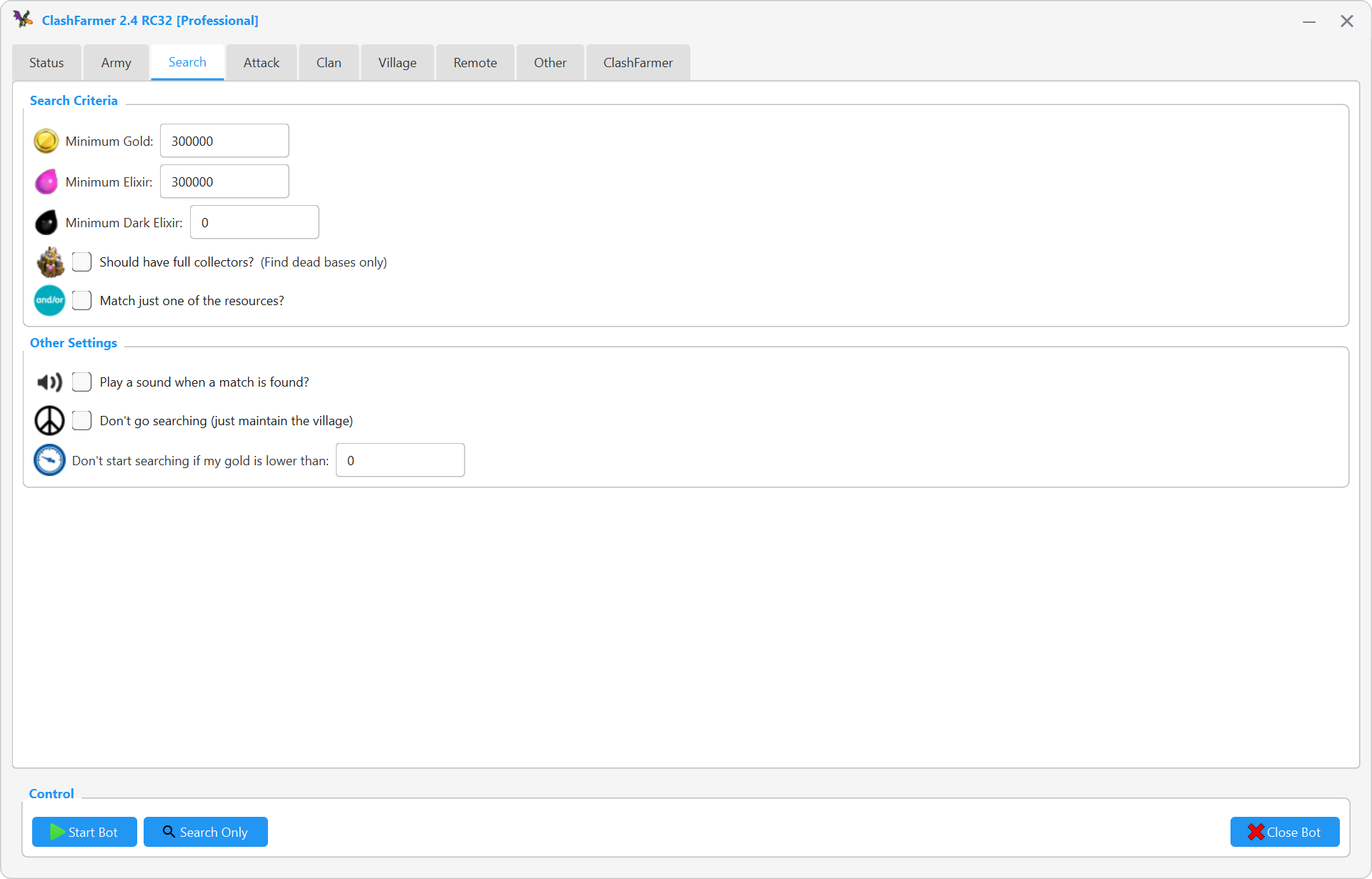
Download ClashFarmer from the official release thread and install it. You'll get a ClashFarmer icon on your desktop and in the start menu. The first time you run the bot, take a minute to tweak the Army, Search and Attack tabs to fit your village, then click Start Bot — ClashFarmer finds your emulator automatically.
Do you have a question? Need help with anything?
Check out our frequently asked questions for common solutions, or ask the community on the ClashFarmer forum.